

Show3D MCP · Visual guide
Connect Codex to Show3D
Install the Show3D plugin, authorize your account, and connect Codex to the modeling scene you have open. Codex CLI is not required.
Before you start
Have these three things ready. You do not need to configure an MCP server URL manually.
- Codex desktop is open and signed in
- You are signed in to Show3D in your browser
- A Show3D modeling scene is created or open
Run the one-line installer
Keep Codex desktop open, choose your system, then paste and run the one-line command below in your terminal.
Open Terminal, paste the command, and press Return.
curl -fsSL https://www.show3d.com/codex/show3d/install.sh | shThe command succeeded when your terminal says “marketplace has been registered with Codex.” Return to Codex and click Install on the Show3D plugin page that opens automatically.
Click Install in Codex
When the command finishes, Codex displays the Show3D plugin page automatically if it is already open. Click Install, then follow the authorization prompts.
Screenshot to be added
The Show3D plugin page that Codex opens after the command, with the Install button clearly visible.
File path: public/images/mcp-guide/03-codex-show3d-plugin-v2.png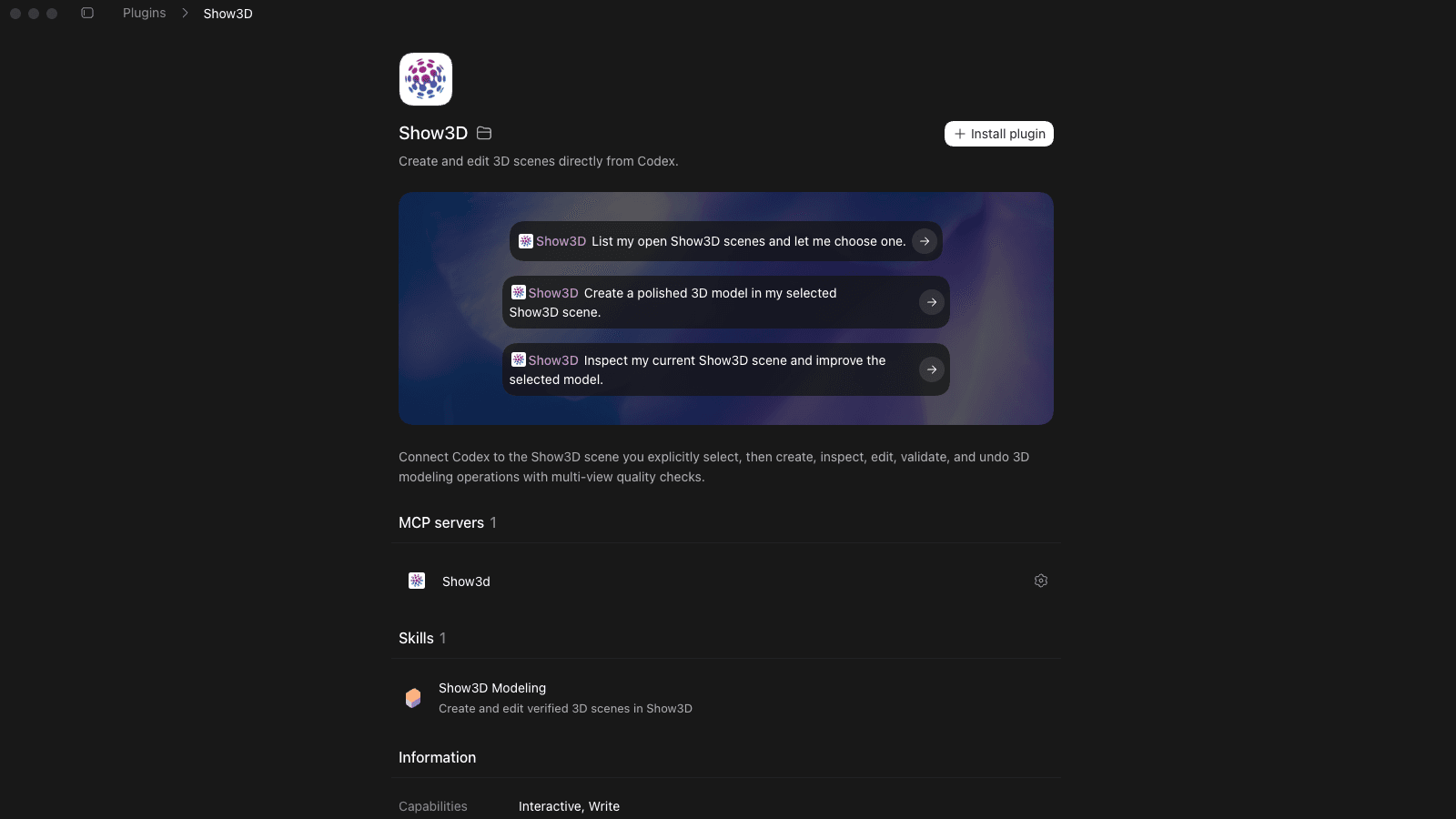
Authorize your Show3D account
After clicking Install, follow the connection prompt in Codex to authorize your Show3D account in the browser.
- 1Your browser opens Show3D authorization. Sign in first if needed.
- 2Confirm the Show3D account and choose Allow connection.
- 3After the browser says Authentication complete, return to Codex and confirm authorization succeeded.
Screenshot to be added
The Show3D authorization page and Allow connection action. Hide account and URL details.
File path: public/images/mcp-guide/04-show3d-oauth-consent-v2.png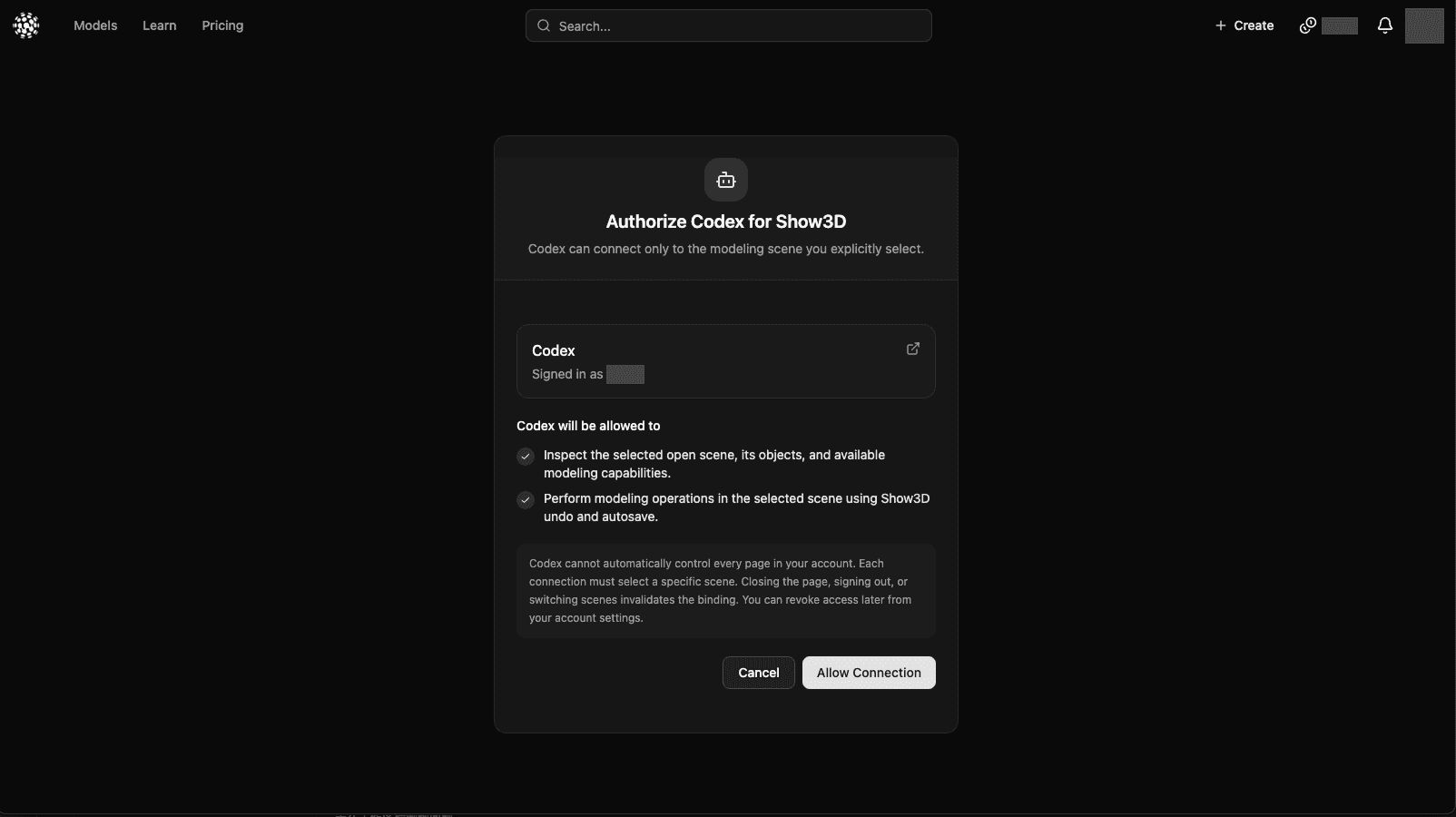
A 127.0.0.1 address is expected
This is a temporary local OAuth callback created by Codex. Close the tab after it says Authentication complete, and never share the code in the address bar.
Make the current scene available
After account authorization, Codex can connect only to a scene page that you actively have open.
- 1Open the scene you want to model in Show3D.
- 2Choose Agent MCP in the left sidebar.
- 3Make sure scene access is on and the status is green and connected.
- 4Keep this page open while Codex is modeling.
Screenshot to be added
The Agent MCP icon and green connection indicator in the left sidebar of the modeling page.
File path: public/images/mcp-guide/05-show3d-agent-connected-v2.png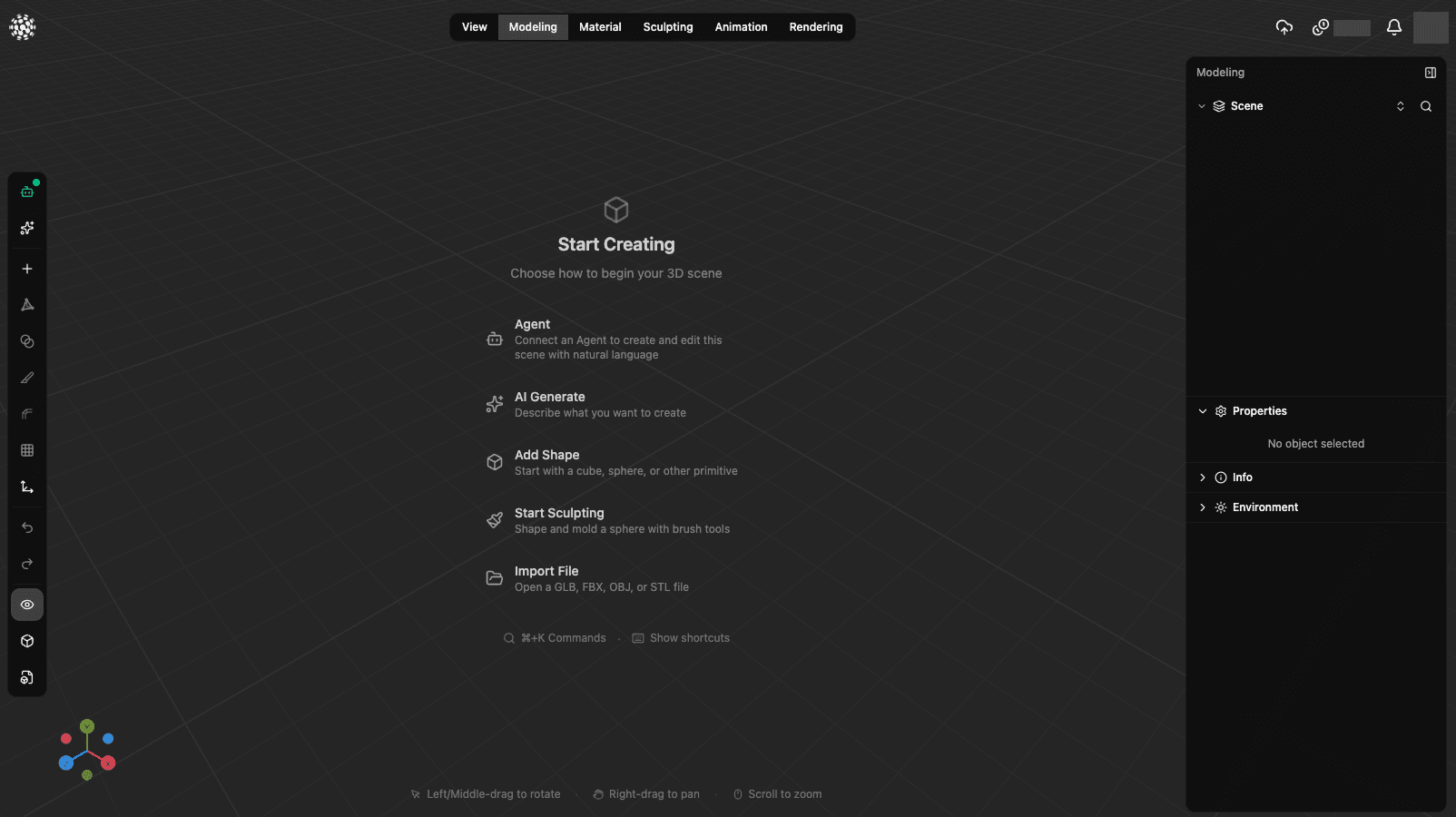
Closing the page, signing out, or switching scenes invalidates the old scene connection. This is scene-scoped access and does not revoke your Show3D account authorization.
Test the connection in Codex
Begin with a read-only test. Start modeling only after Codex can see the scene.
Send this to Codex
List my currently open Show3D scenes and connect the only scene. Do not modify the scene yet.Screenshot to be added
After Codex lists the open Show3D scenes, follow its reply to select the scene to connect.
File path: public/images/mcp-guide/06-codex-scene-test-v2.png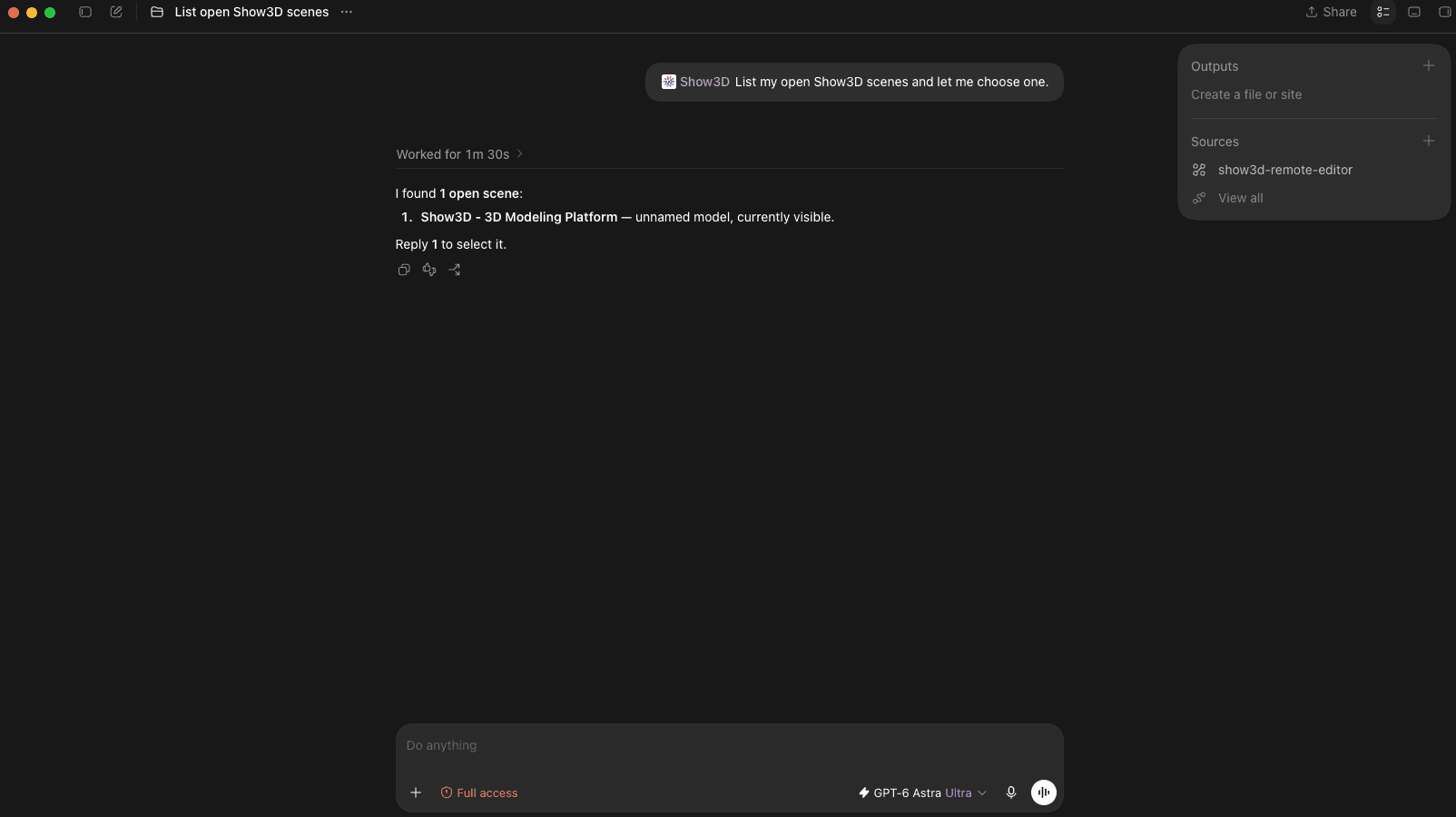
The connection is ready when
- Codex returns the current Show3D scene name or ID
- Agent MCP remains connected on the Show3D page
- The read-only test does not change the scene
Troubleshooting
The plugin page did not open after the command+
Open Codex, then run the same command again. If the page still does not appear, open Plugins in Codex, find Show3D, and click Install.
The authorization page keeps waiting or asks me to sign in+
Sign in to Show3D in the same browser, return to Codex, and start Connect again. Do not continue from an expired authorization page.
OAuth succeeded, but Codex cannot see a scene+
Keep the Show3D modeling page open, use the same account you authorized, and check the Agent MCP switch and connection status.
Why must I select the scene again after refreshing?+
A refresh creates a new editor session. List and select the current scene again in Codex; you do not need to authorize the account again.
How do I update Show3D later?+
Run the command for your system under “Run the one-line installer” again, then fully quit and reopen Codex.
Setup complete
Keep the Show3D scene page open. You can now return to Codex and start modeling.
Open Show3D modeling