

Animate an object
Create an animation by recording an object’s position, rotation and scale at different frames.
Before you start
Add or import an object, select it and switch to Animation. The scene list identifies the objects; the timeline holds their motion. Set the frame range and frame rate before building a longer sequence.
Start with an Agent request
To create a new animated object or scene, use 3D Agent on the homepage and describe both the objects and their motion. In an existing scene, use AI workspace → Agent. Name the parts that should move, the duration, and what should remain still. Review the resulting transform keys and playback in the Animation workspace.
Record two poses
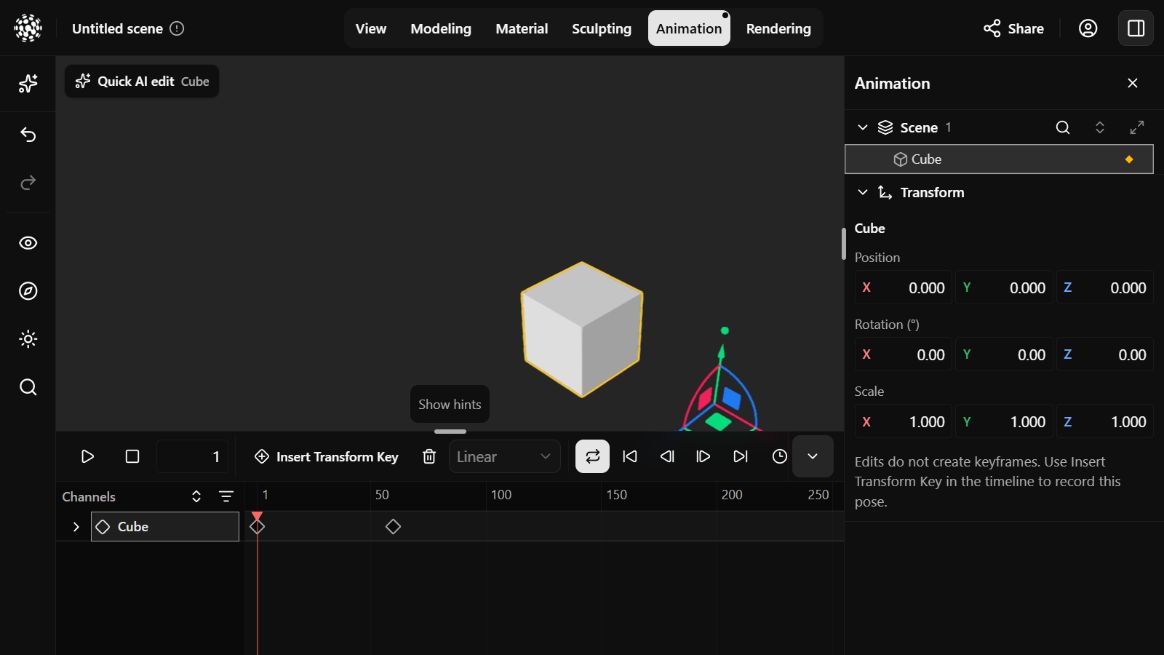
For a simple exercise, record X = 0 at frame 1, then X = 2 at frame 60 on the same object. Keep Y and Z unchanged.
- Move the playhead to the starting frame. Set the object’s position, rotation and scale.
- Choose Insert Transform Key to record that pose. Editing a transform alone does not create a keyframe.
- Move to a later frame. Change the pose and choose Insert Transform Key again.
- Play or scrub between the keys. Adjust the poses or key timing until the motion is right.
Control timing and transitions
Open Playback timing to change Start, End and FPS. Select keys before choosing Constant, Linear or Bezier interpolation. Timeline zoom and scrolling change the view, not the animation timing.
| Controls | What changes |
|---|---|
| Current frame | The time at which you inspect or record a pose. |
| Start / End | The frame range used for playback. |
| FPS | The number of frames played per second. |
| Constant | Hold a value until the next key. |
| Linear | Change evenly between keys. |
| Bezier | Use a curved transition between keys. |
Work with imported clips
Models can include animation clips. These appear as Imported tracks, separately from the transform keys you create in Show3D. Preview the available clips and check their interaction with your scene before adding new motion.
If an object does not move
- Check that the intended object has keys on at least two different frames and that the recorded values differ.
- Check the playback range and current frame. A key outside the range will not appear during that playback.
- Confirm that Insert Transform Key recorded your edits. A changed pose without a key is not a new animation key.