

Render an image
Compose a view, adjust its appearance and export an image. Use AI rendering when you want a generated interpretation.
Before you start
Arrange objects, materials and lighting, then switch to Rendering. Frame the view you want to present. Image export captures a view; confirm your scene is saved if you want to keep editing later.
Export the scene view
- Choose the camera angle and framing, then check the lighting and materials.
- Adjust the render effects. Start with tone mapping and brightness before adding effects such as bloom or depth of field.
- Choose a resolution preset or enter custom dimensions. Enable Transparent Background if you need an image without its background.
- Choose Export image and wait for the PNG download. Inspect the exported image at its intended display size.
Choose the settings that matter
| Controls | What changes |
|---|---|
| Resolution | Sets the output image dimensions. Larger exports require more rendering work. |
| Transparent Background | Produces an image with a transparent background. |
| Tone Mapping | Controls how the rendered light range appears in the final image. |
| Depth of Field | Controls which depth appears in focus. |
| Bloom | Adds a glow around bright areas. |
Create an AI render
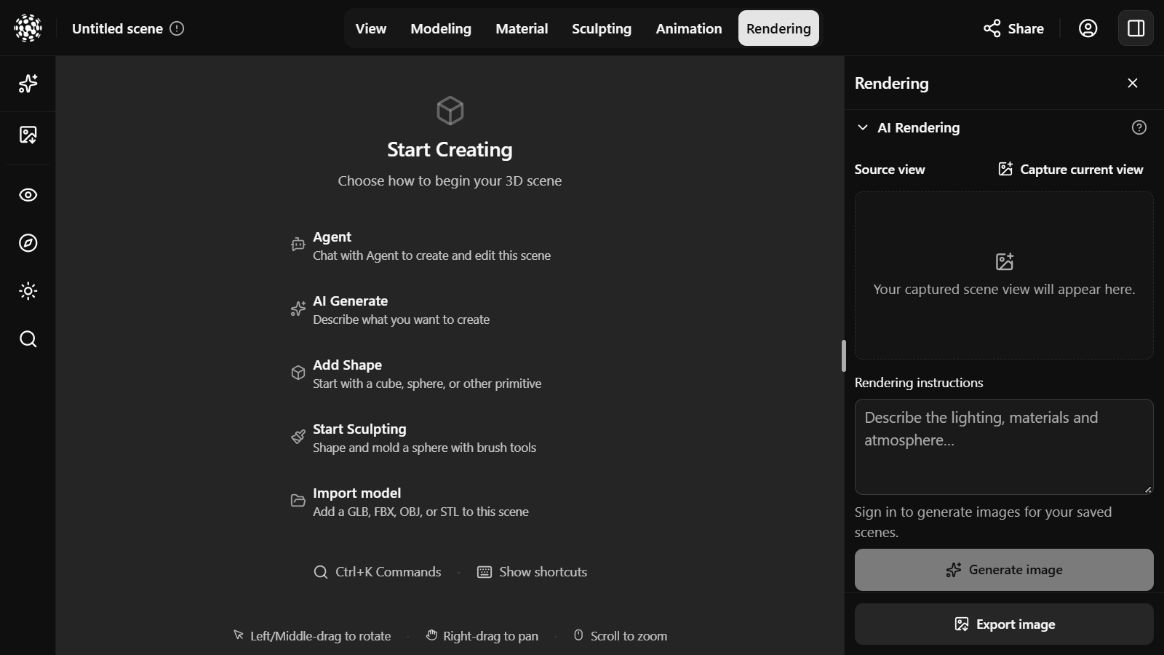
AI rendering generates a new image from a captured scene view and your instructions. It can reinterpret details and does not replace the scene’s geometry or materials.
- In Rendering, open AI Rendering and choose Capture current view. Capture again if you change the framing.
- In Rendering instructions, describe the intended lighting, environment and style. Review the captured input and displayed credit cost.
- Sign in and save a scene you own when prompted, then choose Generate image.
- Review the completed image in this scene’s render history. Compare it with the original scene before using it for presentation.
Check the result
If the image looks too dark or soft, review the lighting, tone mapping and focus settings. If an export fails, reduce the resolution and retry. For AI output, inspect proportions and details: a generated image is a visual interpretation, not evidence that the 3D model has changed.