

Save, share and export your work
Check automatic saving, choose who can view your scene, or export a model or image.
Save an editable scene
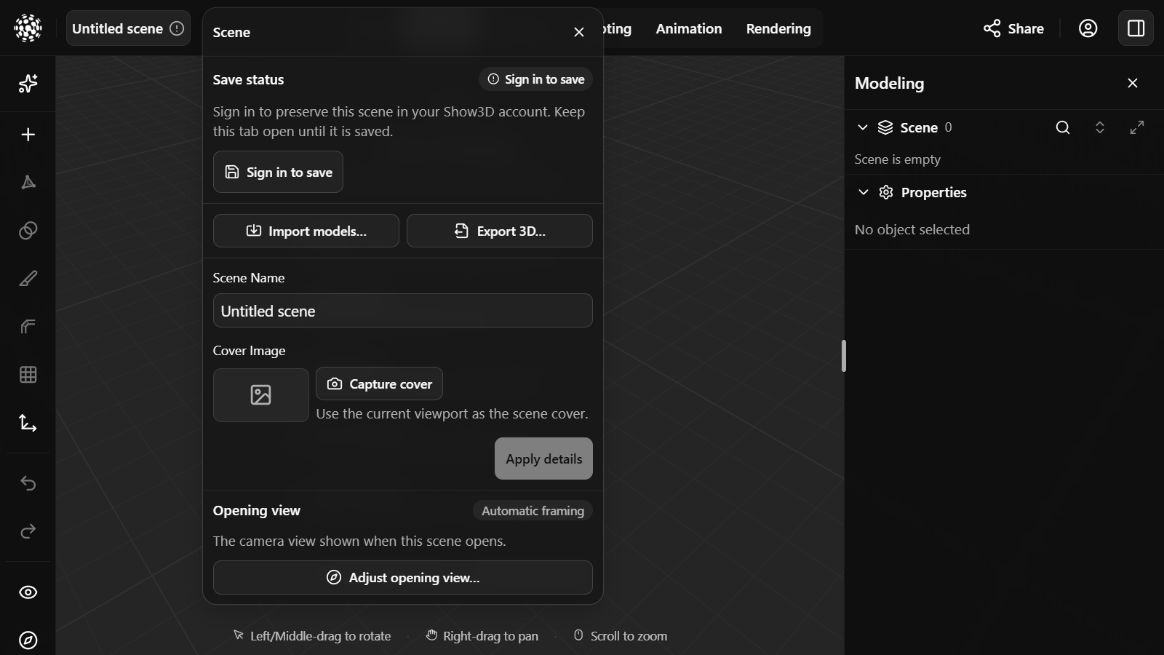
Your editable scene saves to your Show3D account. Sign in and work in a scene you own; saving is not available for an empty scene. A downloaded model or image does not replace the editable scene.
- After you add or import an object, changes save automatically. Open the scene name in the header to check the current status.
- To save immediately, choose Save now in the Scene panel or use Ctrl / ⌘ + S. Confirm the saved status before leaving. If saving fails, keep the page open and follow the retry message.
- When you edit the scene name or cover in the panel, choose Apply details. These metadata drafts need their own confirmation.
- Reopen saved scenes from My work. Use Remix on another creator’s saved scene when you want your own editable copy.
Choose a model format
Open the scene name in the header, choose Export 3D…, set the file name and format, then choose Export file. This downloads the whole scene in the selected interchange format. Inspect the file in the receiving application.
| Format | What to expect |
|---|---|
| GLB | A binary glTF file with supported scene geometry, materials and animation. A convenient first choice for applications that support glTF. |
| glTF | A JSON glTF export with embedded image data and supported animation. Check the receiving application’s glTF support. |
| OBJ | Geometry export. The current Show3D scene exporter does not package a material file or animation with OBJ. |
| STL | Geometry export without materials or animation. Check scale and mesh suitability in the receiving application. |
Create an image instead
For a picture, switch to Rendering, choose the view and resolution, then use Export image. The PNG records the rendered view and is not an editable 3D scene.
Check before handing work over
- Open the exported file in its destination application and inspect scale, materials and any animation.
- Choose GLB or glTF when materials or animation matter; the current OBJ and STL exports contain geometry.
- Check that the scene is saved and that its sharing visibility matches your intention. An exported file and a shared scene have separate access.
Practice in Show3D
Open the editor and follow the steps with your own scene.