

Before you start
Have these three things ready. You do not need to configure an MCP server URL manually.
- Codex desktop is open and signed in
- You are signed in to Show3D in your browser
- A Show3D modeling scene is created or open
Run the one-line installer
Keep Codex desktop open, choose your system, then paste and run the one-line command below in your terminal.
Open Terminal, paste the command, and press Return.
curl -fsSL https://www.show3d.com/codex/show3d/install.sh | shClick Install in Codex
The installer attempts to open the Show3D plugin page. Choose Install or Connect, then complete the authorization prompts. Restart Codex if the installed plugin is not yet available.
Loading screenshot…
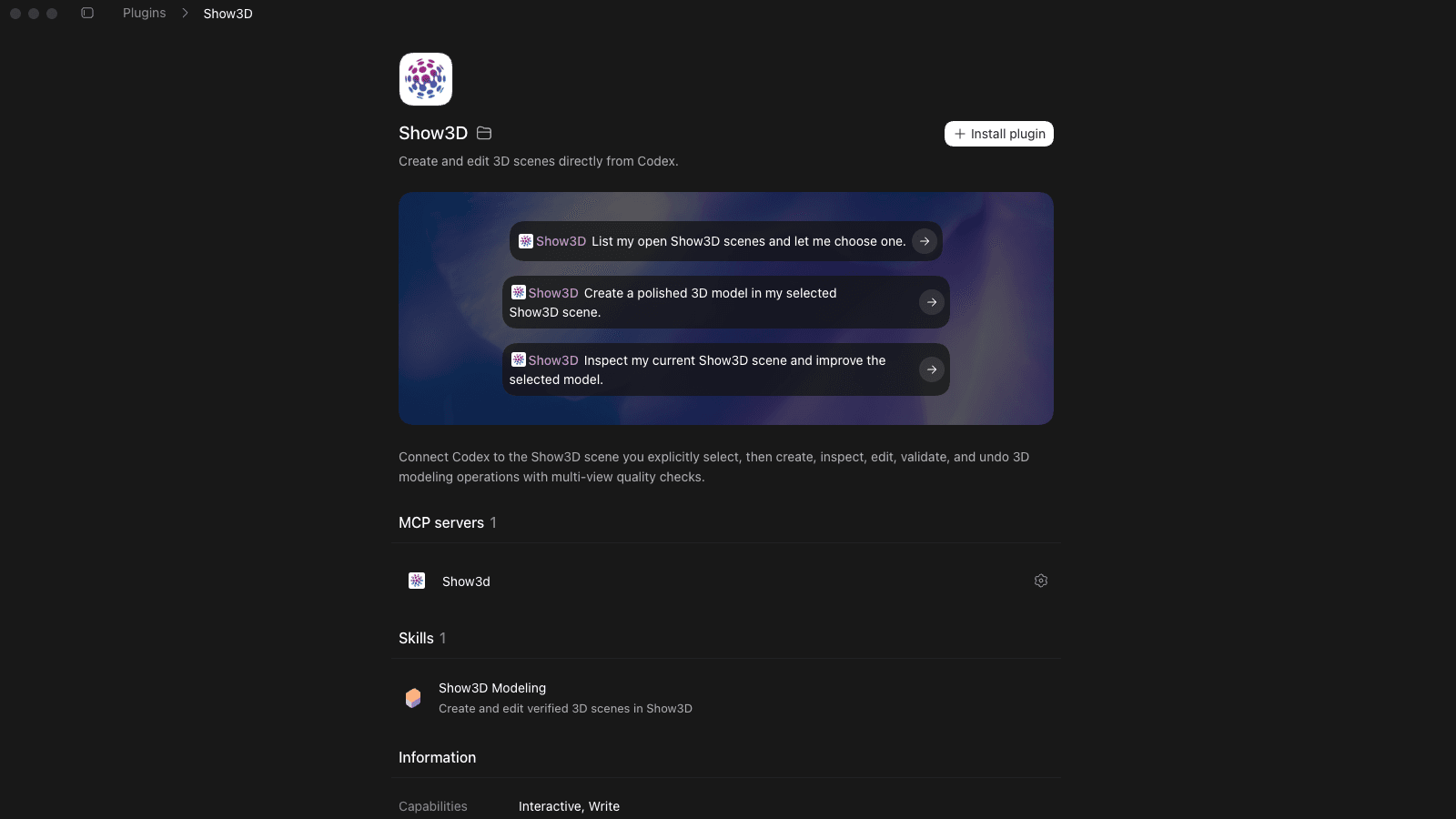
Authorize your Show3D account
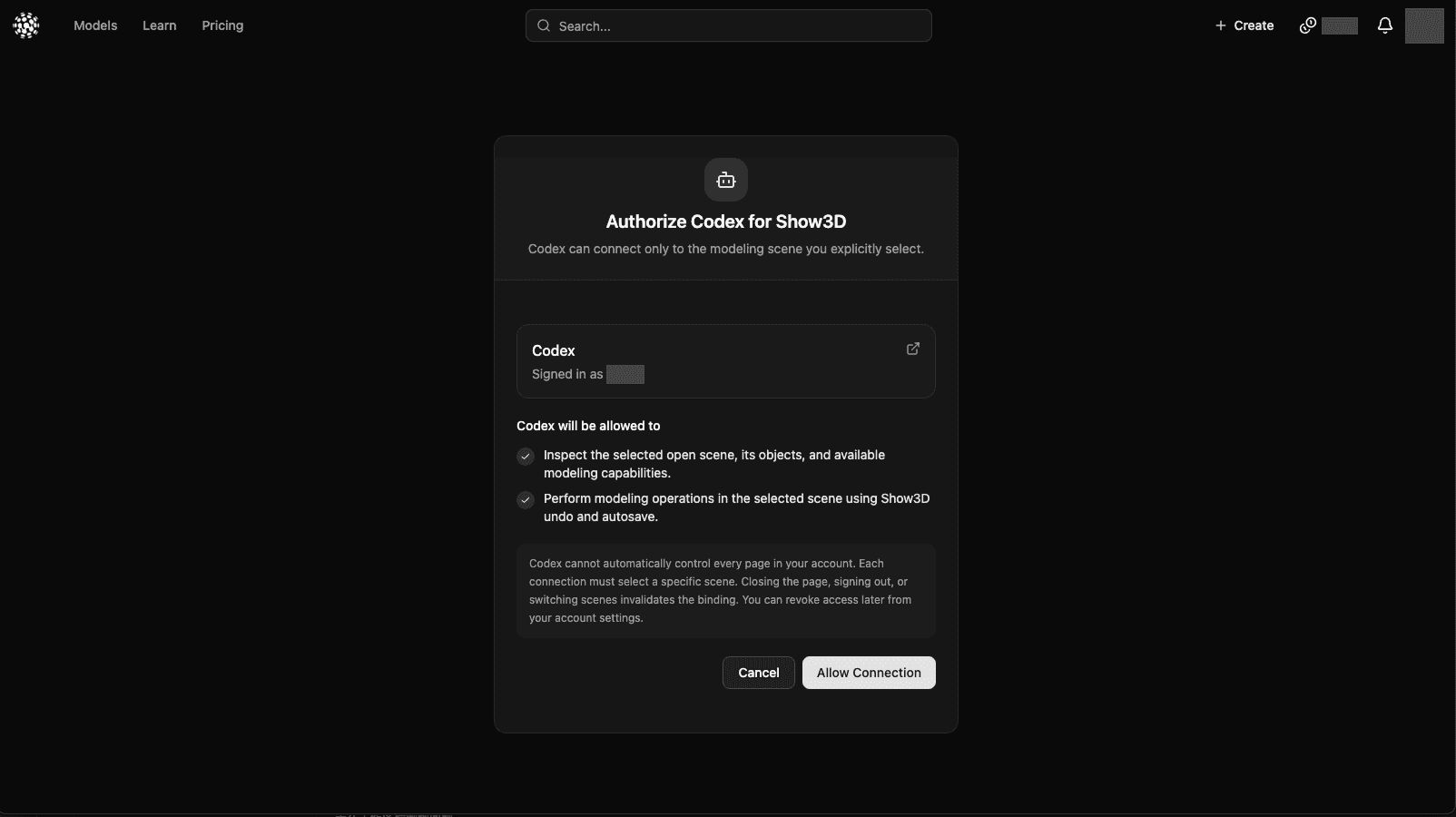
After clicking Install, follow the connection prompt in Codex to authorize your Show3D account in the browser.
- 1Your browser opens Show3D authorization. Sign in first if needed.
- 2Confirm the Show3D account and choose Allow connection.
- 3After the browser says Authentication complete, return to Codex and confirm authorization succeeded.
Loading screenshot…
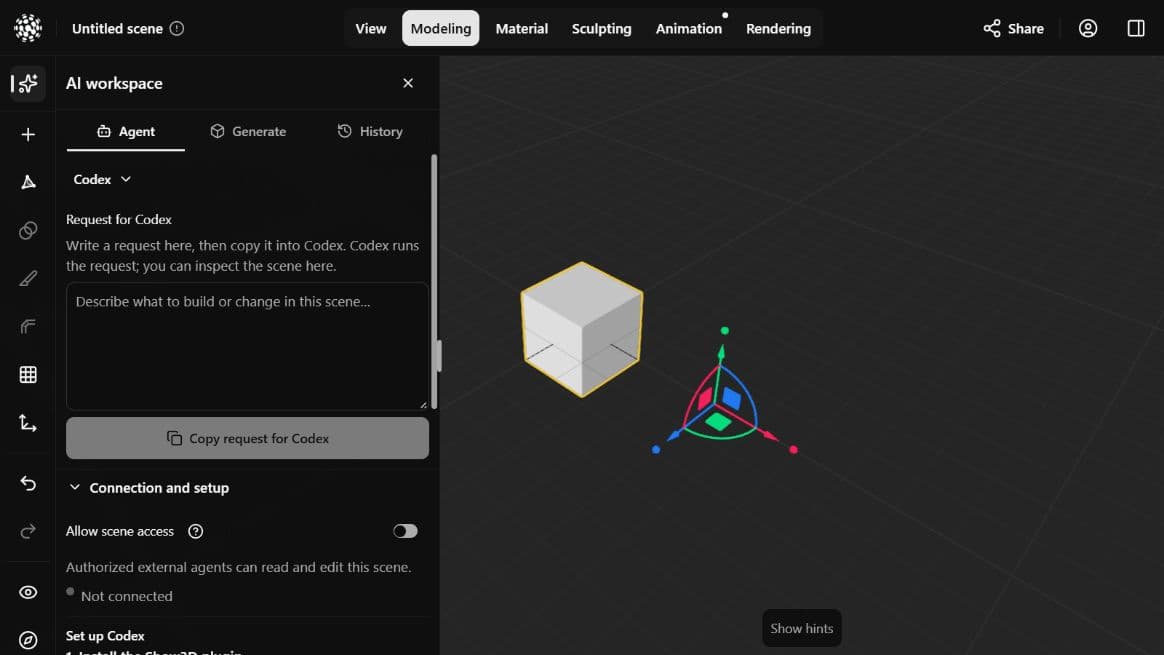
Make the current scene available
After account authorization, Codex can connect only to a scene page that you actively have open.
- 1Open the scene you want to model in Show3D.
- 2Open AI workspace, choose Codex under Agent, and expand Connection and setup.
- 3Enable Allow scene access and check that the status says Connected.
- 4Keep this page open while Codex is modeling.
Loading screenshot…
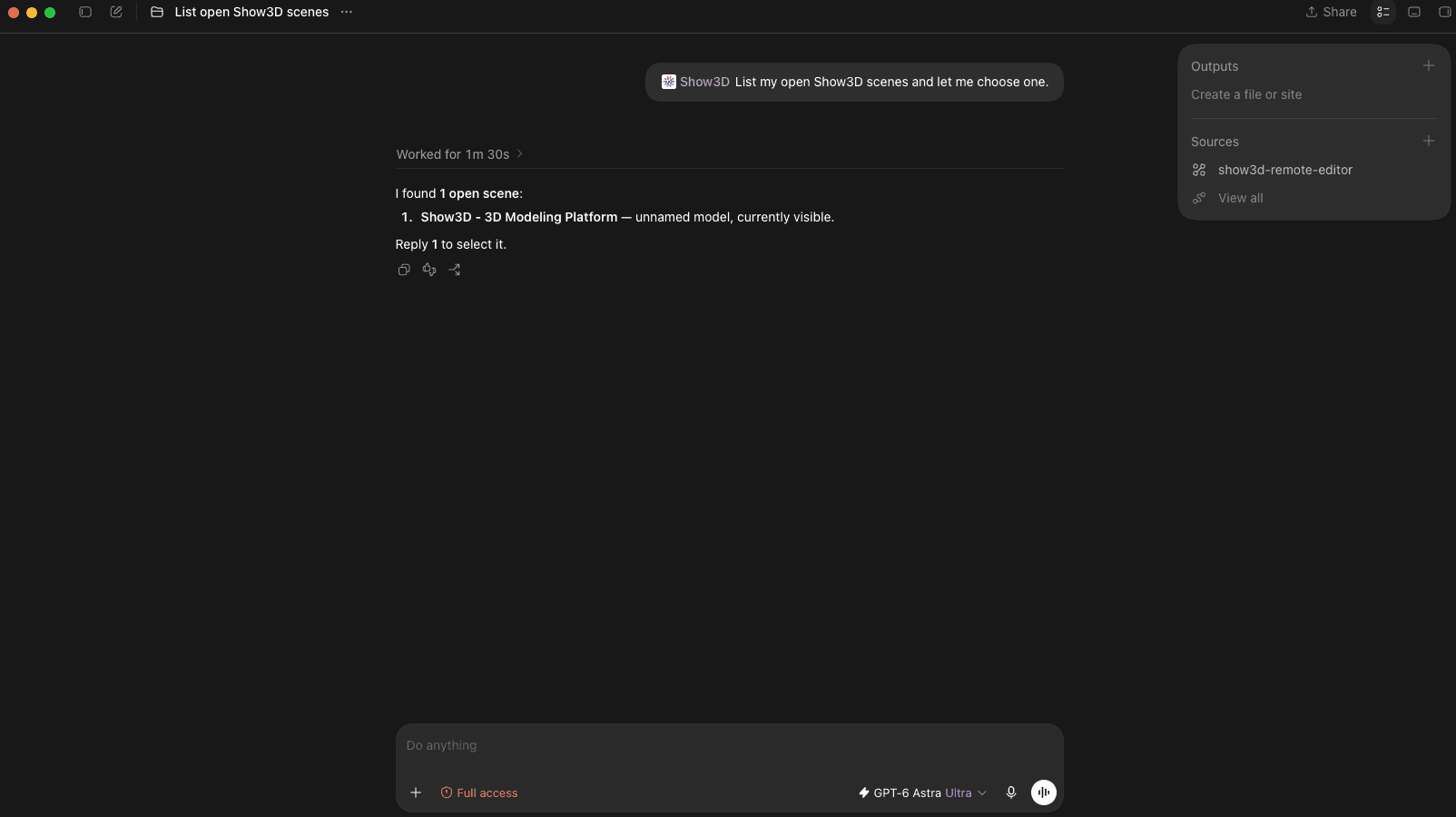
Test the connection in Codex
Start by listing the open scenes. Choose the intended scene, then ask Codex to inspect it before requesting an edit.
Send this to Codex
List my currently open Show3D scenes and let me choose the scene to connect. Do not modify any scene.Loading screenshot…
The connection is ready when
- Codex lists the intended scene and you select it for the task
- Connection and setup for Codex still shows Connected in Show3D
- The read-only test does not change the scene
Troubleshooting
Setup complete
Keep the Show3D scene page open. You can now return to Codex and start modeling.
Open Show3D modeling